
Creating Repositories
A repository in Jozu Hub is a named collection of ModelKit tags owned by a User account or an Organization. For the conceptual model, see Repositories in Jozu Hub.
There are three ways to create a new repository:
- Import an existing model or dataset from Hugging Face
- Create an empty repository from the Hub UI
- Push a ModelKit to a repository name that doesn't exist yet, and let Hub auto-create it
Each path produces the same kind of repository. Pick whichever fits the artifact you are starting from.
Import from Hugging Face
Use this when the artifact you want already lives on Hugging Face and you want a curated, scanned copy under your own namespace.
- Sign in to Jozu Hub.
- Click Add Repository, then choose Import from Hugging Face.
- Paste the Hugging Face model or dataset URL.
- Add a Hugging Face access token if the source repo is gated or private.
- Click Import.
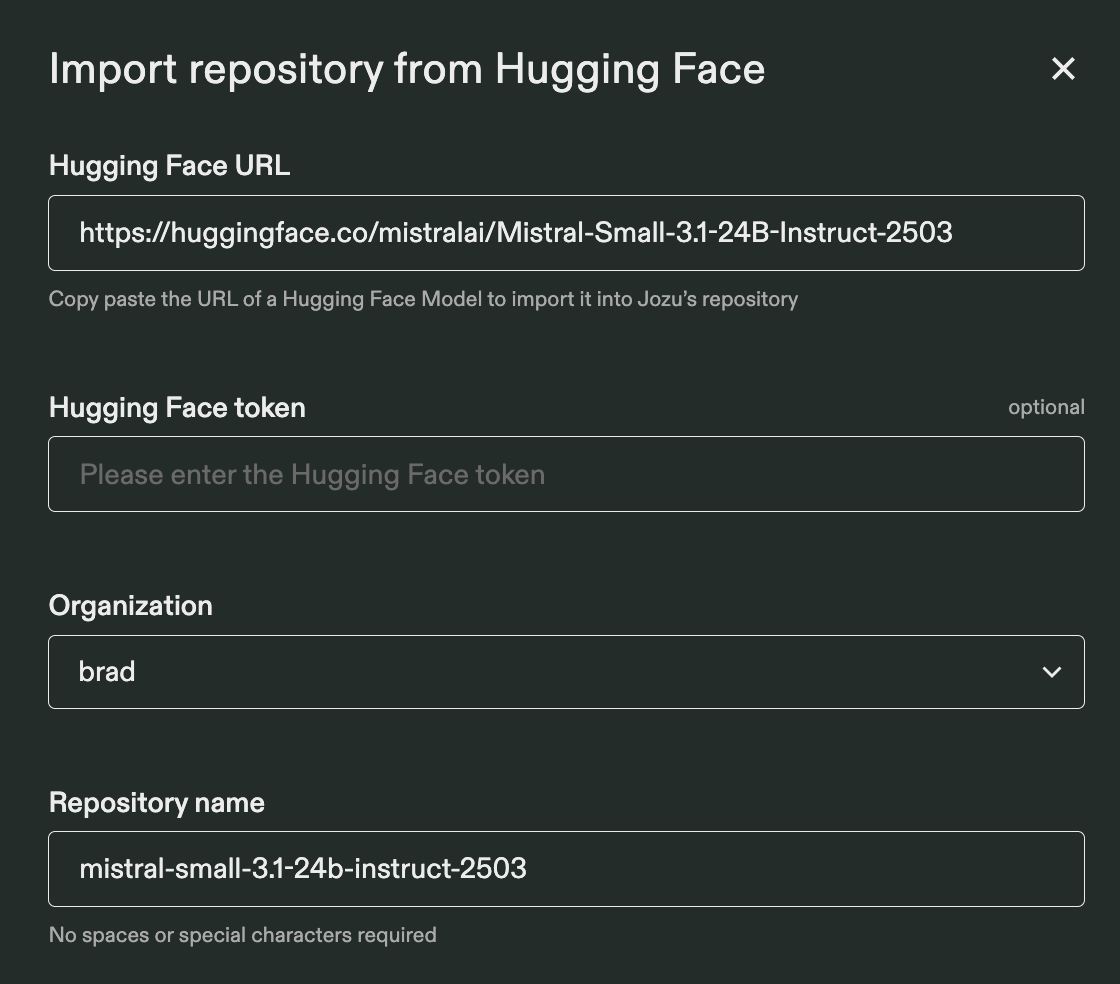
Hub creates a new repository under your account or selected organization, packages the Hugging Face artifact into a ModelKit, and runs the standard security scan. Imports of large models can take a while - on SaaS you'll receive an email when the import finishes.
The resulting repository behaves like any other Jozu Hub repository. You can push additional tags, change visibility, and pull from it using the Kit CLI.
TIP
The HF source URL is preserved in the imported ModelKit's metadata, so it can be a provenance pointer back to Hugging Face that stays attached to the artifact wherever it goes.
Create an empty repository in the UI
Use this when you want to reserve a repository name before pushing anything, or when you want to set visibility and metadata up front.
- Sign in to Jozu Hub.
- Click Add Repository, then choose Create Repository.
- Select the owning account or organization.
- Enter a repository name.
- Choose the initial visibility (public or private). On SaaS this defaults to public; on self-hosted installs the default depends on registry policy.
- Click Create.
The repository is now ready to receive ModelKit pushes. Until you push the first tag, the repository view will be empty.
Auto-create on push
Use this when you already have a packed ModelKit and just want it in Hub without clicking through the UI.
If you kit push a ModelKit to a repository that doesn't exist yet, Hub will create the repository automatically, provided two things are true:
- The target namespace exists. The user or organization in the push URL must already be on the Hub.
- You have push rights to that namespace. For a personal account that means it's your account. For an organization that means you have at least Developer rights.
For example, a Developer in the acme-research organization can run:
sh
kit push jozu.ml/acme-research/fraud-detection-v2:0.1.0If fraud-detection-v2 does not exist under acme-research, Hub creates it on the fly with default visibility, then accepts the push. No separate "create repository" step is required.
If the target namespace doesn't exist, or you don't have push rights to it, the push fails and no repository is created.
INFO
Auto-created repositories use the registry's default visibility setting. If you need a repository to be private from the very first push, create it explicitly in the UI first and set visibility before pushing.